This document traces the redesign of the QuranFlow iOS app from start to finish. Each step documents what we started with, what we did, what we produced, and what that fed into next. Every source document is linked so you can read the full artifact.

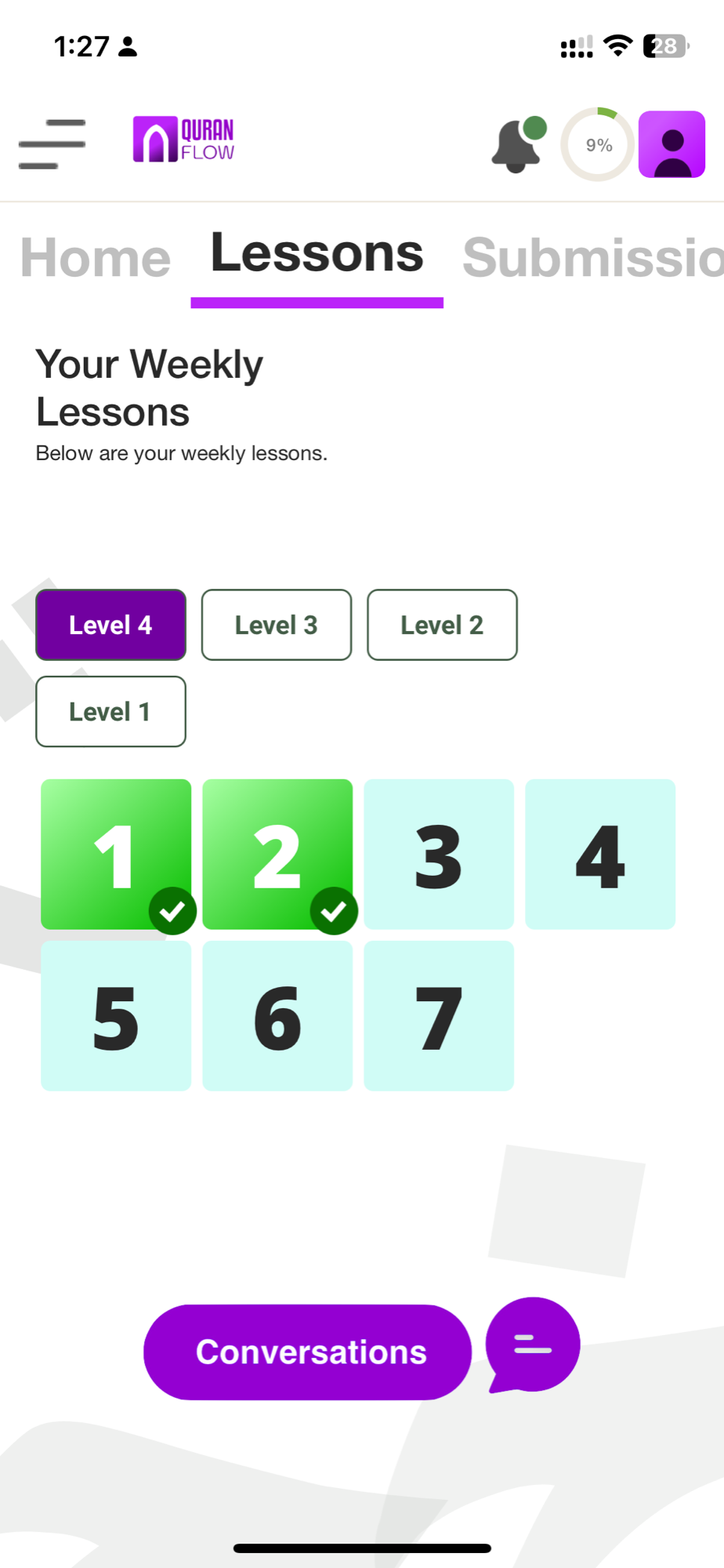
Step 1

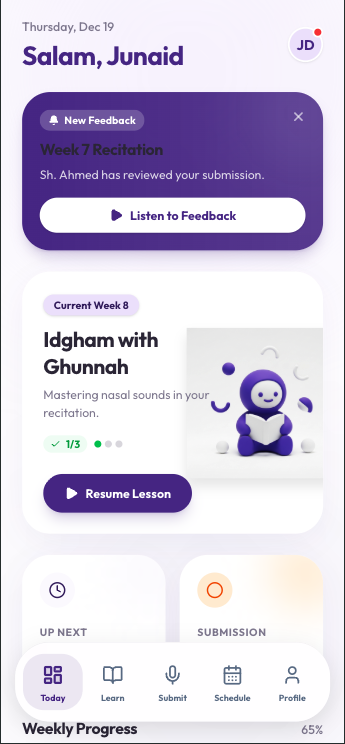
The App Walkthrough

November 27, 2025

Input

Live walkthrough of the QuranFlow iOS app (v1.0.8), transcribed via Granola

Output

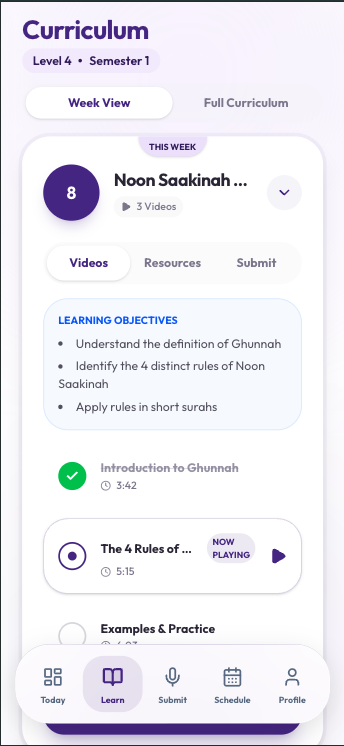
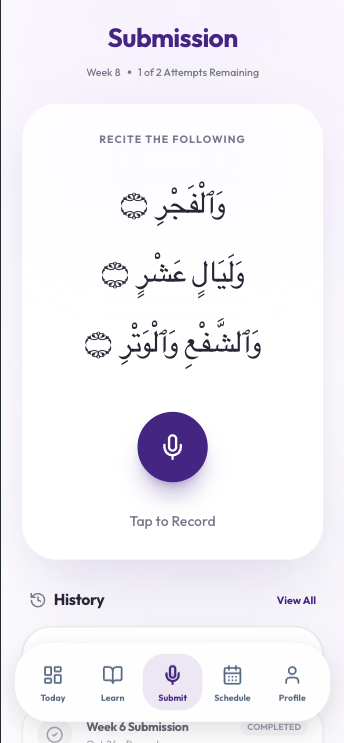
47-line voice transcript and 23 chronological screenshots

Walkthrough transcript →

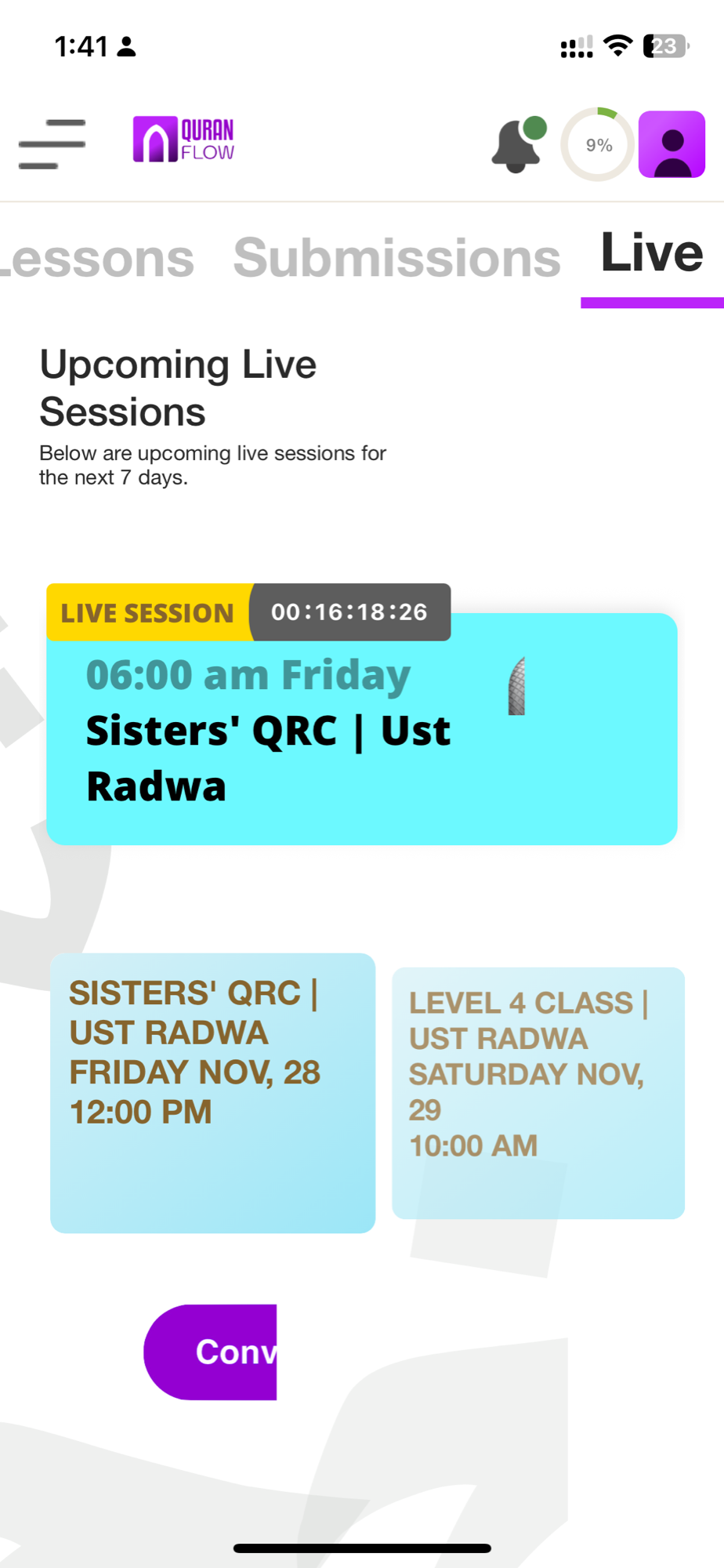
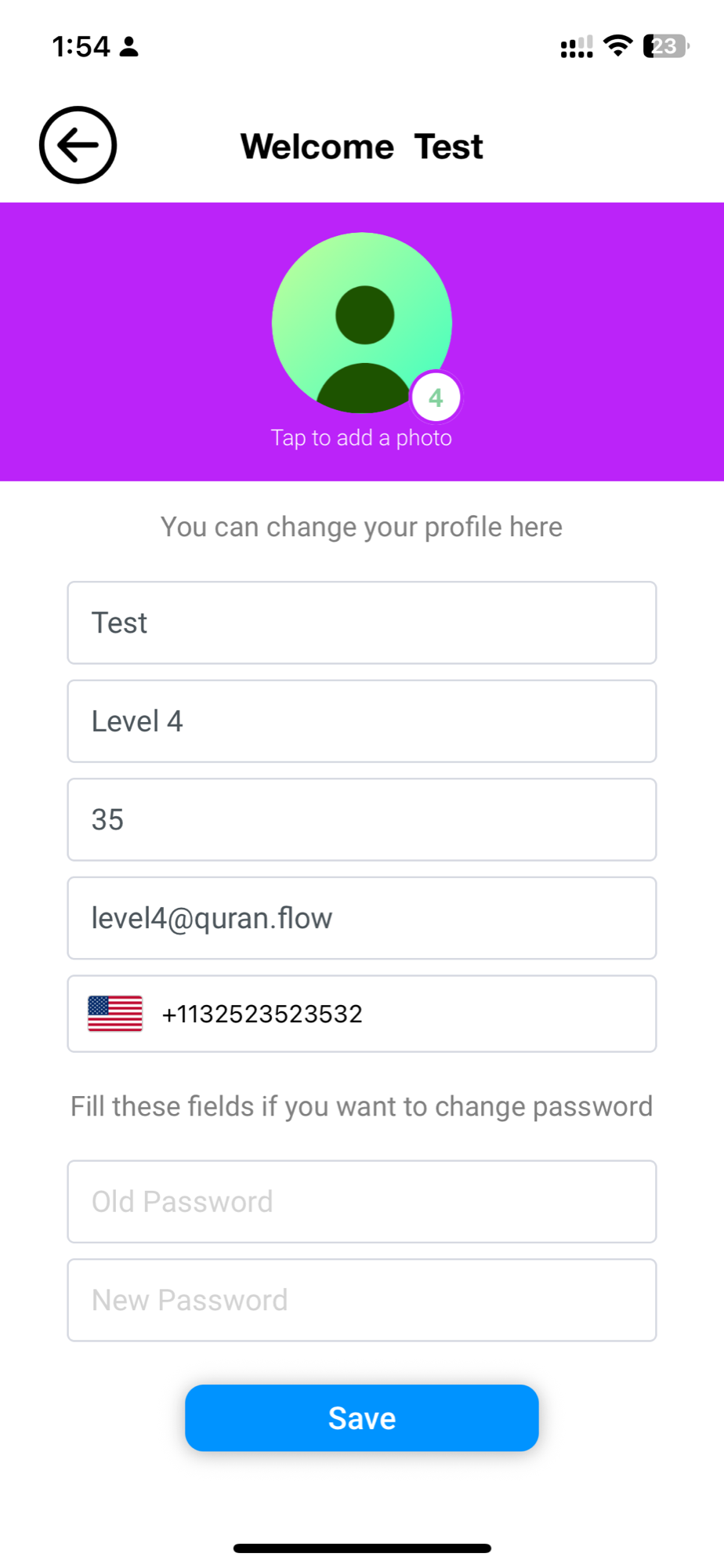
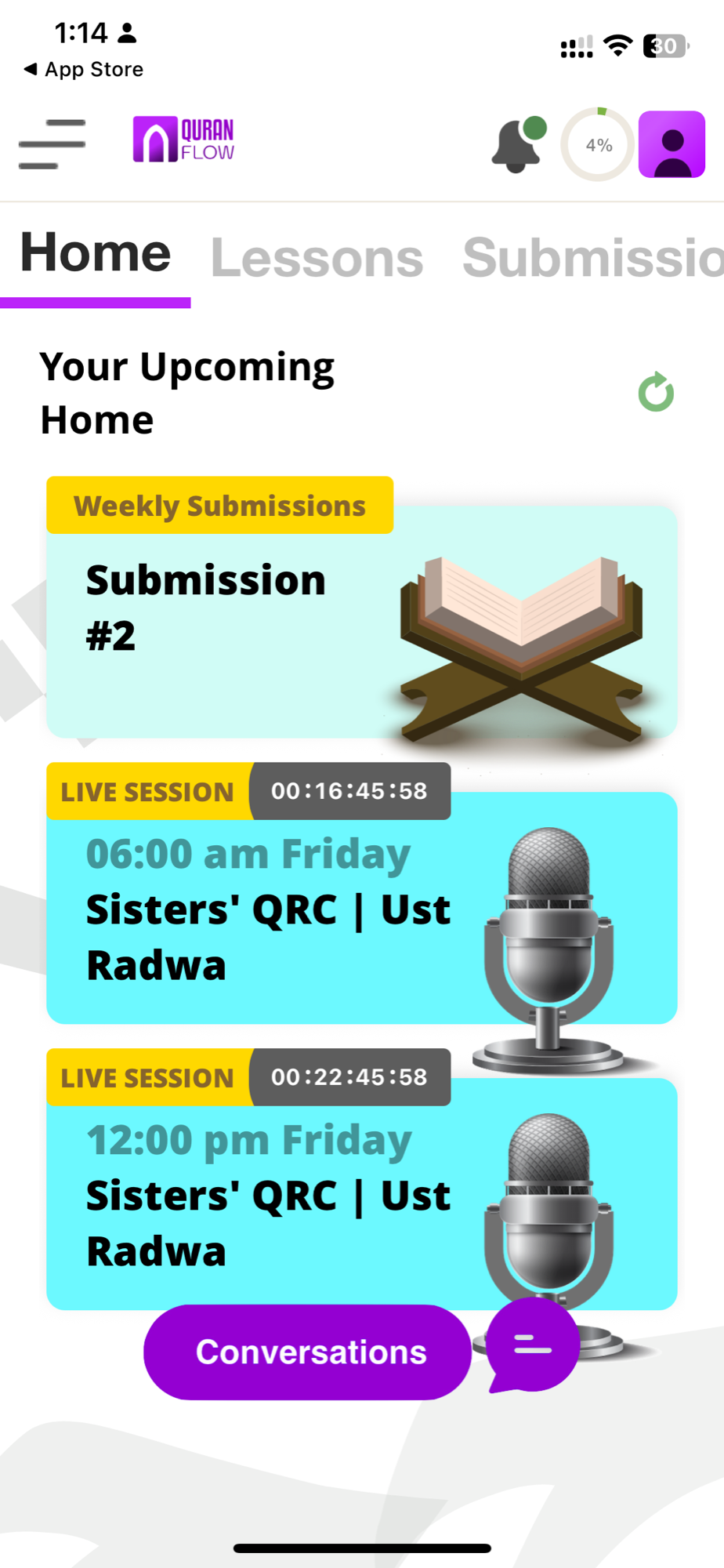
Kamran walked through every screen of the QuranFlow iOS app while recording a voice transcript — a natural walkthrough documenting real reactions to what each screen showed.

The 47-line transcript captured specific moments of confusion, frustration, and broken features. The 23 screenshots were taken chronologically, following the user flow from home screen to settings.

This raw input — reactions like "this is hideous" and "complete fail" — provided the starting material for every step that followed.

Step 2

The Usability Audit: 49 Issues Classified

November 27, 2025

Input

Raw walkthrough transcript + 23 screenshots

Output

491-line formal audit using Nielsen Norman Group methodology

Full audit → PDF →

The raw transcript was transformed into a structured audit using Nielsen Norman Group's UX methodology and the HEART metrics framework (Happiness, Engagement, Adoption, Retention, Task Success).

491 lines of analysis, organized screen-by-screen across 12 areas of the app. Every issue was assigned a severity level:

6 P0 Critical
20 P1 High
18 P2 Medium
5 P3 Low

The six P0 issues — the ones blocking core functionality:

  1. Video Playback Failure
  2. Missing Submission History
  3. Non-Standard Quranic Font (hidden in settings)
  4. No Timezone Information on live sessions
  5. Broken Notification Context
  6. Critical Missing Information in User Profile

The audit produced a severity-ranked inventory of problems. What it didn't explain was why these problems existed — that required someone who works with students daily.

Step 3

Root Problem: User Disorientation

December 2, 2025

Input

Audit document + PM's operational knowledge

Output

339-line reframed understanding of the core problem

PM discussion →

The audit was an outside perspective. Meeting with Lejla — the program manager who works with students daily — revealed what it missed.

New discoveries:

  • A hidden recordings section the audit missed entirely
  • A schedule buried behind five clicks
  • Students accidentally submitting recordings when they meant to press play

More importantly, the discussion reframed the problem. The core issue isn't individual broken features — it's user disorientation. Students don't know where they are in the program, what to do next, or when things happen. Despite receiving five emails announcing the October 2nd semester start, students still email three weeks in asking when it begins.

"Make everything super clear. Even having a schedule that's hidden behind five clicks is an issue. Them not seeing when the semester starts is an issue. Them not being spoon-fed what they should be doing is an issue."

This shifted the question from "how do we fix this screen?" to "how do we solve disorientation?" — which removed the constraint of the current app's structure entirely.

Step 4

Redesigning From Tasks, Not Screens

December 18, 2025

Input

Audit + PM discussion + QuranFlow Program Description

Output

1,249-line capability map with 68 discrete tasks

Capability map →

A capability map is a document that defines everything a user needs to be able to do — independent of how the app is currently structured. Instead of asking "how do we fix this screen?", the question becomes "what does the student need to accomplish?"

This is the key methodological shift. By documenting 68 discrete tasks across the full student lifecycle — from pre-semester enrollment through weekly learning cycles to end-of-semester transitions — we removed the constraint of the existing app's screen structure entirely. The redesign could start from first principles.

Each task was tagged by priority:

  • [Core] — The app fundamentally fails without this
  • [Supporting] — Significantly improves the experience
  • [Enhancement] — Polish items

The document also includes a gap analysis — four categories of problems discovered when comparing what students need against what the app provides:

  • P0 bugs: 7 items blocking core functionality
  • Missing capabilities: 8 features that don't exist (semester countdown, calendar integration, direct coach messaging)
  • Discoverability gaps: 7 features that exist but are hidden (font settings, recordings, support)
  • Design gaps: 5 areas where UI design makes features unusable

Every gap traces back to the disorientation problem identified in Step 3. This document became the single source of truth for everything that followed.

Step 5

Design References: Apple and Headspace

December 2025

Input

Apple WWDC25 session + Headspace iOS app

Output

Structured WWDC25 Field Guide + design reference screenshots

WWDC25 Field Guide →

Before designing the new architecture, we gathered two external references to measure against.

Apple's WWDC25 "App Redesign Field Guide" session was extracted from the YouTube video into a structured reference document using Gemini (Google's AI). It provided the framework we'd use to evaluate every design decision: the "Three Questions" test (Where am I? What can I do? Where can I go?), progressive disclosure patterns, and tab bar guidelines.

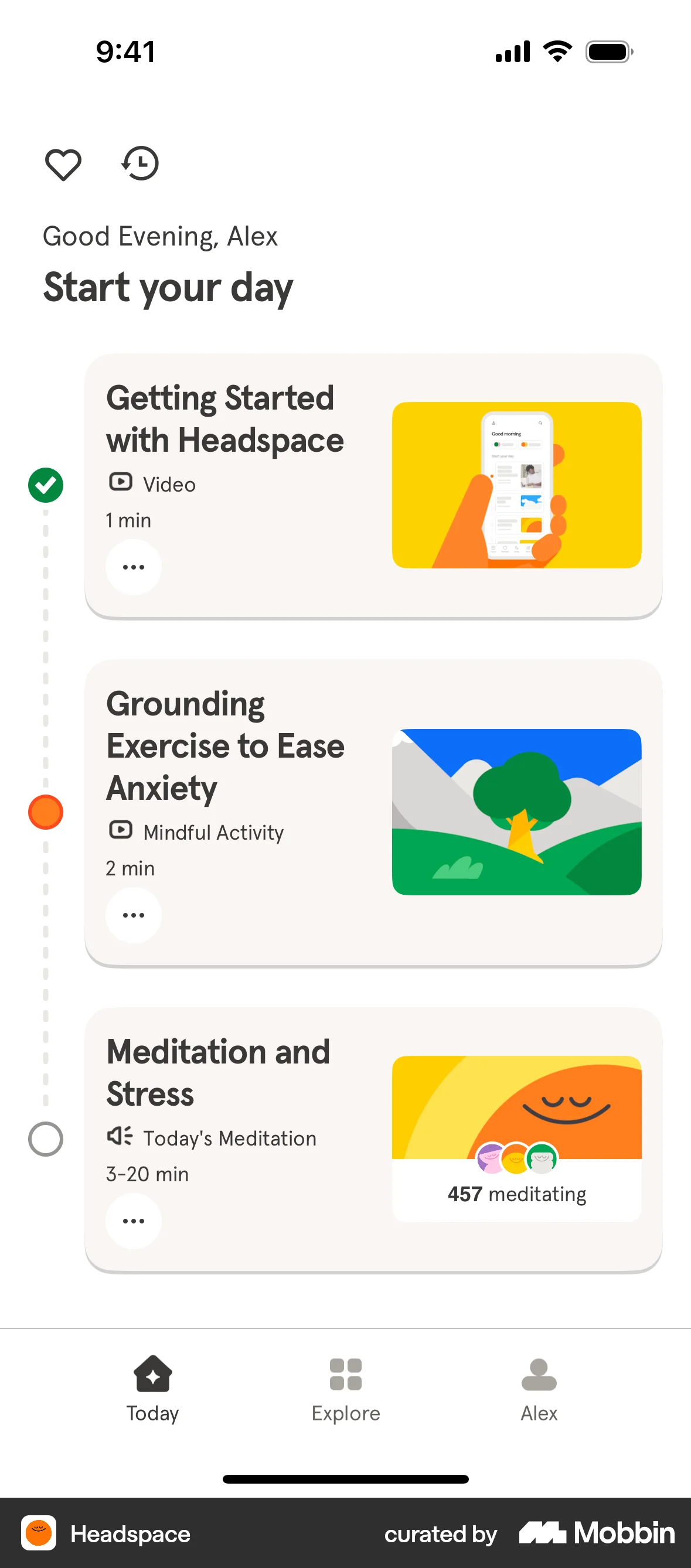
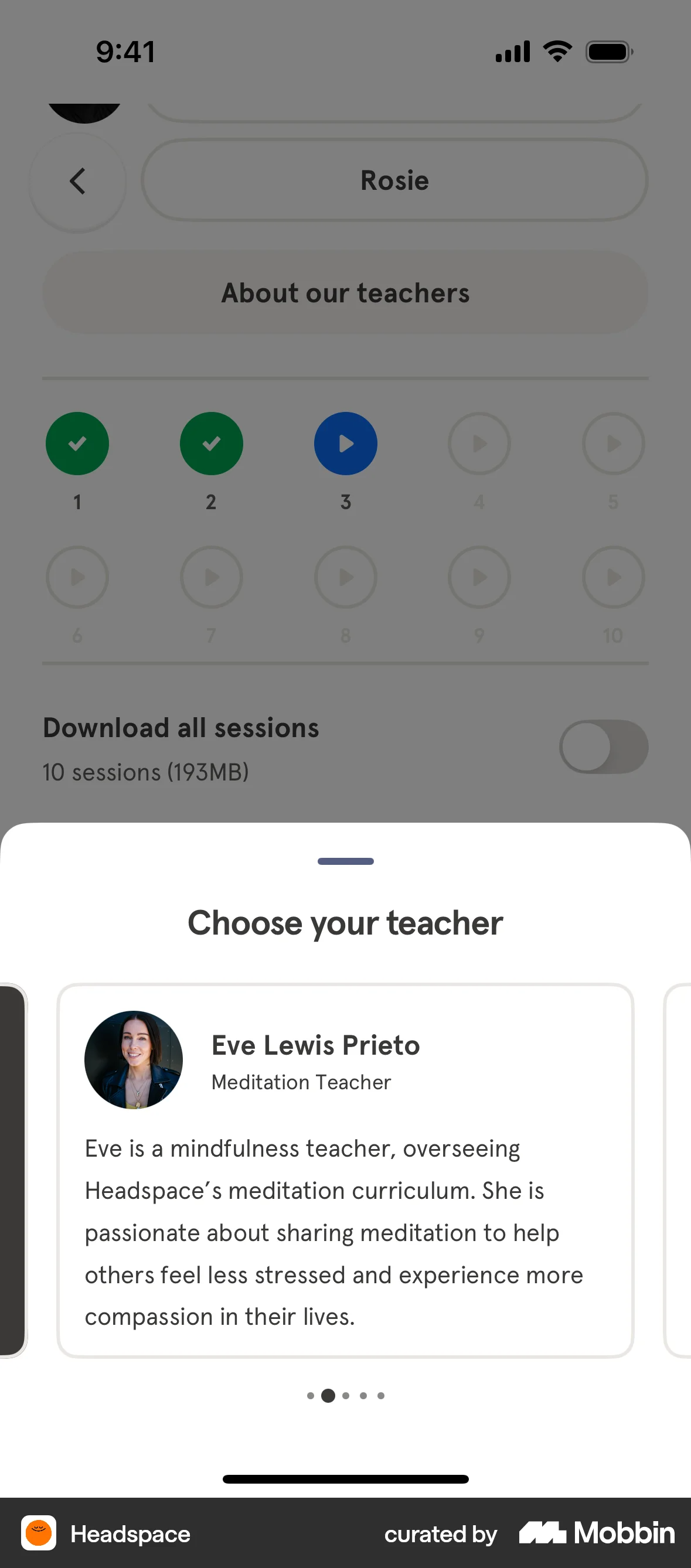
Headspace iOS screenshots served as design reference — a well-designed learning app for a similar audience: people with daily practice habits who need structured guidance without complexity.

Step 6

Five Attempts to Write the Right Brief

December 2025

Input

Capability map + WWDC25 Field Guide + Headspace references

Output

5 versions of the architecture design prompt

A prompt is the detailed written brief given to Claude (Anthropic's AI) specifying what to analyze and produce. The goal here: write a prompt that produces three distinct architecture proposals for the app. It took five attempts. Each version was a direct response to what the previous version failed to produce.

Version Approach Why it changed Result
v1 Comprehensive spec First attempt — detailed context, 3-proposal exploration Too verbose, overwhelming
v2 Aggressive brevity Cut fluff, led with the disorientation problem Still too detailed
v3 Strict output format Added required reading and a quality bar from the Field Guide Process unclear
v4 Narrative framing Each proposal must answer "how do users think about this app?" Sound concept, underspecified
v5 Guided design process 5 sequential analysis stages — analyze first, then design Produced 3 strong proposals

Each version refined the framing. The shift that worked: v5 moved from "here's the problem, propose solutions" to "here's a structured process for arriving at solutions" — analyze the problem first, then design.

Step 7

How Should the App Be Organized?

December 18, 2025

Input

v5 prompt executed against the capability map

Output

1,420-line document with 3 distinct architecture proposals

All 3 proposals →

We knew the problem (disorientation) and we had 68 tasks the app needed to support. The question now: how should all of this be organized? There are fundamentally different ways to structure a learning app, and each one creates a different mental model for the student. Should the app follow their weekly schedule? Show everything at once? Or guide them step-by-step?

To answer this, we had Claude generate three architecture proposals — each built on the same capability map but organized around a different principle:

Proposal Organizing Principle Tabs
A: Weekly Rhythm "The app follows my weekly learning cycle" Today, Learn, Schedule, Progress, More
B: Dashboard "The app shows me everything at once" Home, Lessons, Feedback, Live, Profile
C: Guided Journey "The app tells me exactly what to do next" Now, Progress, Library, Connect

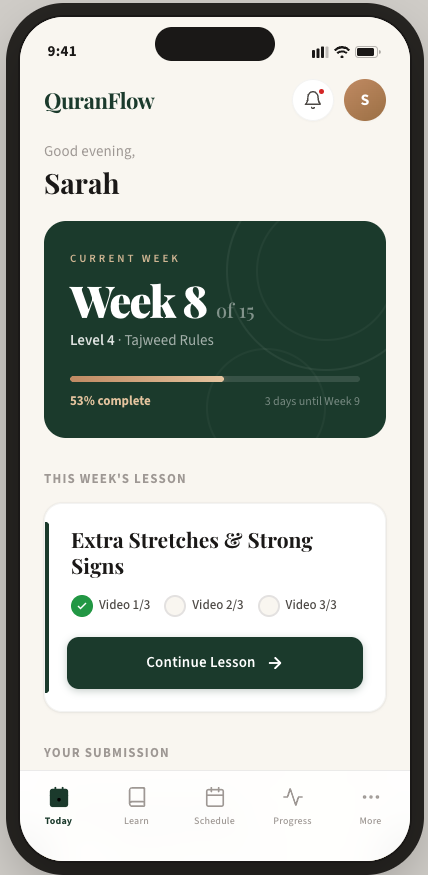
Proposal A was selected. QuranFlow is a 15-week program with weekly lessons and weekly submissions. Making time the organizing principle — "Week 8 of 15" — directly addresses disorientation. Students immediately know where they are in the program, what's due this week, and when things happen.

Key advantages of Weekly Rhythm over the other two:

  • Schedule becomes one tap instead of five clicks
  • Lesson, submission, and feedback grouped by week — matching how students actually think about their learning
  • Passes all three WWDC25 validation tests (Where am I? What can I do? Where can I go?)

But selecting an organizing principle is just the beginning. The next question: does it actually work when you build it?

Step 8

Mockup v1: 80% Aligned

December 18, 2025

Input

Proposal A architecture

Output

React mockup with 5 screens — 80% alignment

Design Review A → Try the mockup →

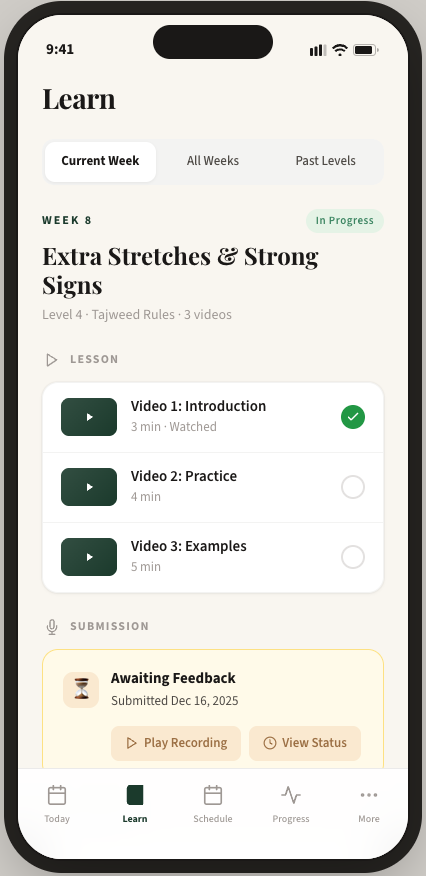
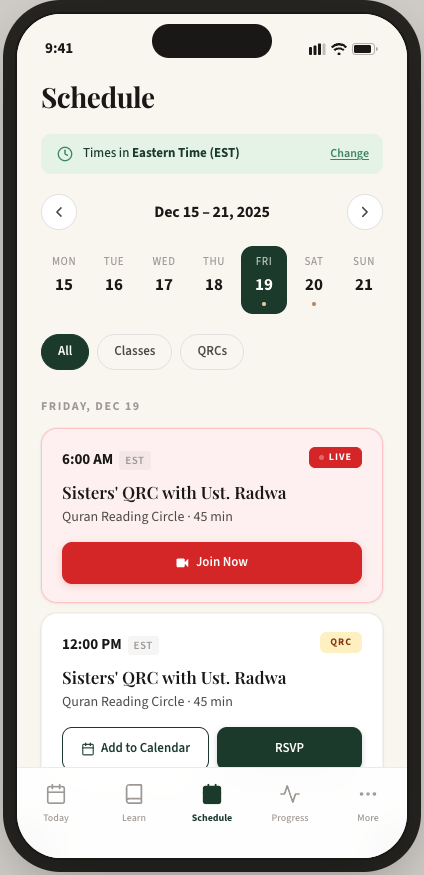
The first visual implementation of Proposal A: five screens (Today, Learn, Submit, Schedule, More) built as a React prototype.

Design review found 80% alignment with the architecture and 57% capability coverage:

Schedule
95%
Submit
95%
Learn
90%
More
90%
Today
60%

Schedule and Submit were near-perfect. The Today page scored 60% — missing the "Week 8 of 15" temporal orientation that was the architecture's central feature. A key structural issue: Submit existed as a standalone tab instead of being unified into Learn.

These specific failures informed what to fix in the second exploration.

Step 9

Mockup v2: 92% Aligned

February 25, 2026

Input

Proposal A + specific learnings from Design Review A

Output

Static HTML mockup with 5 tabs — 92% alignment

Design Review B → Try the mockup →

Two months after Exploration A, the second attempt addressed every documented failure. Correct 5-tab structure, improved Today page, and an entirely new Progress tab.

92% alignment — up from 80%:

Schedule
98%
Today
95%
Learn
95%
More
95%
Progress
90%

The "Week 8 of 15" hero block solved temporal disorientation. The unified Learn tab grouped lesson, submission, and feedback by week. The WWDC25 "Three Questions" test went from 1/3 passing to 3/3.

Still missing: recording interface, feedback detail screens, video playback, onboarding, and several detail modals. Building these required a deeper specification — the subject of the next two steps.

Step 10

Why One AI Pass Isn't Enough

February 25, 2026

Input

Everything from Steps 1–9: capability map, both design reviews, locked Weekly Rhythm principle

Output

v6 architecture prompt — single deep proposal, 5 sequential AI passes

v6 prompt → v6 brainstorm →

At this point we had explored the design space thoroughly: three proposals, two mockups, two formal design reviews, and a locked organizing principle. The question was no longer "what should we build?" — it was "how do we get Claude to produce an implementation-ready architecture with enough depth and quality to actually build from?"

The answer required a brainstorm of its own. A single AI pass — no matter how detailed the prompt — produces shallow results. The AI tries to do everything at once and spreads itself thin. The v6 brainstorm document worked through this problem and arrived at a key decision: split the work into five sequential passes, each focused on one layer, each building on the previous output.

This is a recurring theme in AI-assisted design work: getting high-quality output requires forcing the AI through structured phases. You define the problem in one pass, establish principles in another, review prior work in a third, and only then ask it to design. Each pass reads the output of the previous ones, so the reasoning compounds rather than competing for attention in a single context.

The five passes:

  1. Problem Brief — distill all prior research into a focused problem statement
  2. Design Principles — governing rules for every decision, drawn from the WWDC25 Field Guide
  3. Learnings — what worked and didn't in Mockups v1 and v2
  4. Architecture — full screen-by-screen specifications
  5. Validation — capability coverage check against the original 68-task map

v1–v5 explored the design space. v6 executed within it — one locked direction, maximum depth, structured to produce quality that a single pass cannot.

Step 11

The Architecture Specification

February 25–26, 2026

Input

v6 prompt executed

Output

Complete, implementation-ready architecture specification

Full spec →

The five passes ran sequentially, each building on the previous output:

Phase Purpose
Phase 1 Problem brief — distilled from all prior research
Phase 2 Design principles — governing rules for every decision
Phase 3 Learnings — what worked and didn't in Explorations A and B
Phase 4 Full screen specifications (required 18 amendments: 9 Learn, 9 Schedule)
Phase 5 Validation — capability coverage against the original map

Phase 5 returned a CONDITIONAL PASS (meets requirements with minor gaps): 24 of 27 core tasks fully covered, 3 partially covered, 0 missing. All 7 original P0 issues addressed.

A subsequent Phase 6 provided the visual design language and mockup-specific implementation guidance.

Step 12

Simplifying Based on Feedback

February 26–27, 2026

Input

Initial mockup reviewed by PM (Lejla)

Output

8 prioritized simplification changes, validated against Apple HIG

Feedback analysis →

Lejla's key concern: the redesign adds information clarity but introduces cognitive load. The target audience — busy adult learners, some with ADHD or dyslexia — valued the old app's simplicity even when it was broken.

This created a tension: the audit found confusion from missing information, but adding that information increases visual complexity. Five solution approaches were evaluated. The result: 8 Tier 1 changes, all validated against Apple Human Interface Guidelines:

  1. Remove progress ring — redundant, ambiguous, competes for attention
  2. Remove countdown timer — not actionable, induces anxiety
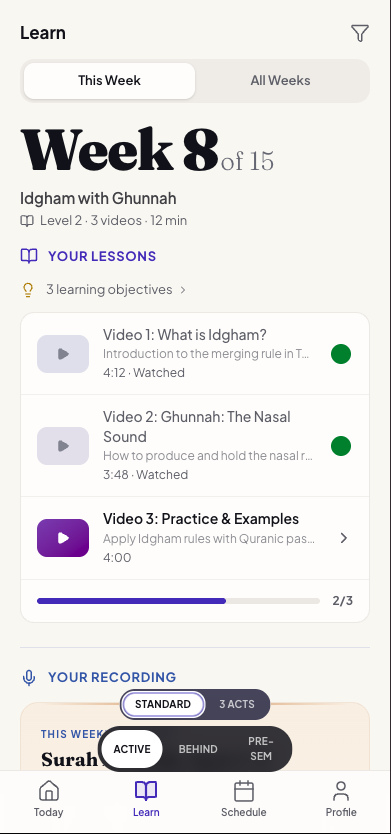
  3. Rename labels for clarity — "Your Lesson" not "Video Lesson," "Your Recording" not "Submission"
  4. Clarify section headers — "Today's Live Sessions" not "Today's Sessions"
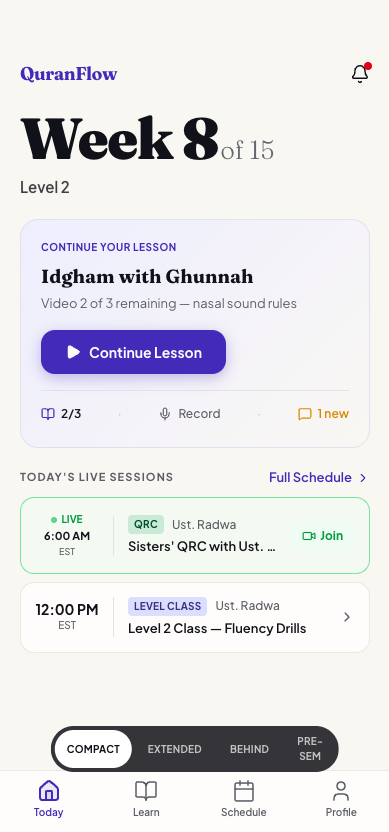
  5. Reduce session cards — 2 instead of 3 (third was below fold)
  6. Simplify level subtitle — "Level 2" not "Level 2 — Reading with Fluency"
  7. Design self-explaining empty states — cards communicate meaning even with no data
  8. Show next session in empty state — when nothing is scheduled today

The guiding principle: reduce without losing orientation. Every removal was validated against the original disorientation problem to ensure we weren't reintroducing the confusion we set out to fix.

Step 13

The Final Mockup

February 26–27, 2026

Input

v6 architecture spec + mockup build prompt + simplification changes

Output

Interactive React prototype — 13 screens covering the full student experience

Open the mockup →

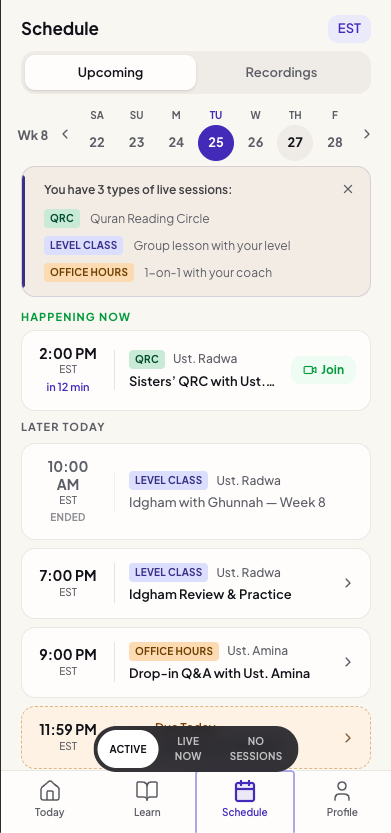
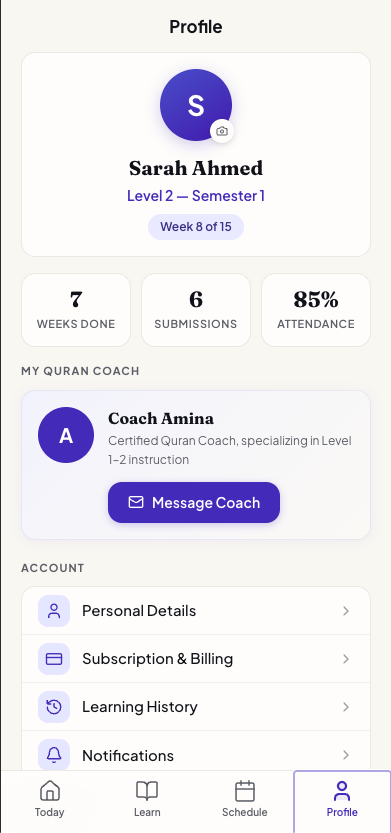
The architecture specification and simplification feedback were translated into an interactive prototype — 13 screens covering every part of the student experience: Today, Learn, Schedule, Recording, Profile, Video Player, multi-step Onboarding, Notification Sheet, Notification Settings, Personal Details, Subscription, and Manage Subscription.

Beyond surface-level design

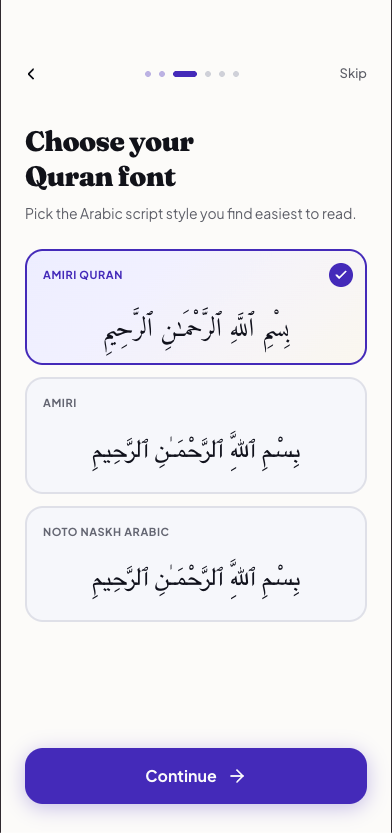
Mockups v1 and v2 were surface-level explorations — tab structure, layout, visual direction. This mockup handles real usage states: what do you see when you're behind schedule? When you have no sessions today? When you're mid-lesson with two videos watched? The onboarding flow walks new students through choosing their Quran font, setting notification preferences, and understanding the weekly rhythm — none of which existed in any previous version.

Features appear when students need them

The Quran font picker is a good example of this depth. The original app buried font selection in settings — one of the six P0 issues from the audit. The redesign surfaces it during onboarding, where students see actual Arabic script rendered in each font and pick what's easiest for them to read. It's a small screen, but it represents the shift from "features exist somewhere" to "features appear when the student needs them."

Weekly Rhythm in every screen

Today shows "Week 8 of 15" with the current lesson and upcoming sessions. Learn groups lesson, submission, and feedback by week. Schedule is one tap away instead of five clicks deep. Compared to the original app — where students couldn't find the schedule, didn't know what week they were in, and accidentally submitted recordings — every screen now answers the three WWDC25 questions: Where am I? What can I do? Where can I go?
Try the Interactive Mockup Start from onboarding. Tap through Today, Learn, Schedule, Profile, and Recording.
Try the different states — active, behind schedule, pre-semester.

The Full Pipeline

Voice Transcript 47 lines of raw voice reactions — Nov 27
Usability Audit 491 lines, 49 issues: 6 P0, 20 P1, 18 P2, 5 P3 — Nov 27
PM Discussion 339 lines — reframed the problem as user disorientation — Dec 2
Capability Map 1,249 lines, 68 tasks across the full student lifecycle — Dec 18
Design References Apple WWDC25 Field Guide + Headspace — Dec
Design Brief 5 iterations from comprehensive spec to guided process — Dec
3 Architecture Proposals 1,420 lines — Weekly Rhythm selected — Dec 18
Mockup v1 80% alignment, 57% coverage — Dec 18
Mockup v2 92% alignment, 67% in-scope coverage — Feb 25
Build Brief v6 — single deep proposal, 5 sequential AI passes — Feb 25
Architecture Spec 5 phases, CONDITIONAL PASS — 24/27 core tasks — Feb 25–26
Stakeholder Feedback 8 simplification changes validated against Apple HIG — Feb 27
Final Mockup 13-screen interactive prototype — Feb 26–27

Each step's output became the next step's input. Every iteration was driven by specific, documented feedback — not hunches. The process took three months (November 2025 – February 2026) and produced 28 source documents, all linked above.

We'd love your feedback

If you have thoughts on the redesign, questions about the process, or feedback on the mockup — drop us a voice note on WhatsApp or Slack. We'd love to hear from you.